
Setup guide
WhatsApp message templates
A template is a message Meta approves in advance. You need one to message a customer first, or to write again after 24 hours, and every WhatsApp campaign sends one.
When you need a template
WhatsApp lets a business write freely for 24 hours after the customer's last message. Your agent answers inside that window with ordinary messages. Outside it, and to start a conversation, only an approved template can be sent.
In Pixl, templates are used in three places:
- Campaigns. A WhatsApp campaign always sends a template. See Campaigns in batches.
- The agent's follow-ups. After 24 hours, a follow-up goes as the approved template you pick for it, with its blanks (like the customer's name) filled in from the conversation.
- Your Inbox. When a chat is Outside the 24-hour window, Send a template is the only way to write until the customer replies.
Templates belong to your WhatsApp Business Account, so connect WhatsApp first: Connect WhatsApp to your agent.
Categories, and what they cost
Meta sorts every template into one of three categories. The category decides who may get it and what Meta charges.
- Marketing: offers, launches, back in stock, “we miss you”. It goes only to people who agreed to hear from you, and Pixl leaves out everyone else.
- Utility: an update about something the customer did or asked for. An order confirmed or shipped, an appointment reminder, a payment due. It must not carry an offer.
- Authentication: one-time passcodes for signing in. These are coming soon in Pixl's builder.
Meta charges for each template message it delivers. The price depends on the category and the customer's country, and marketing costs several times what utility does. Your agent's replies inside the 24-hour window are free, and so is a utility template sent while that window is open. Meta bills these fees to your own WhatsApp Business Account, and Pixl adds nothing on top. Meta publishes its current rates on its WhatsApp pricing page.
Meta can change a category
Write one in Pixl
Step 1: Open Message templates
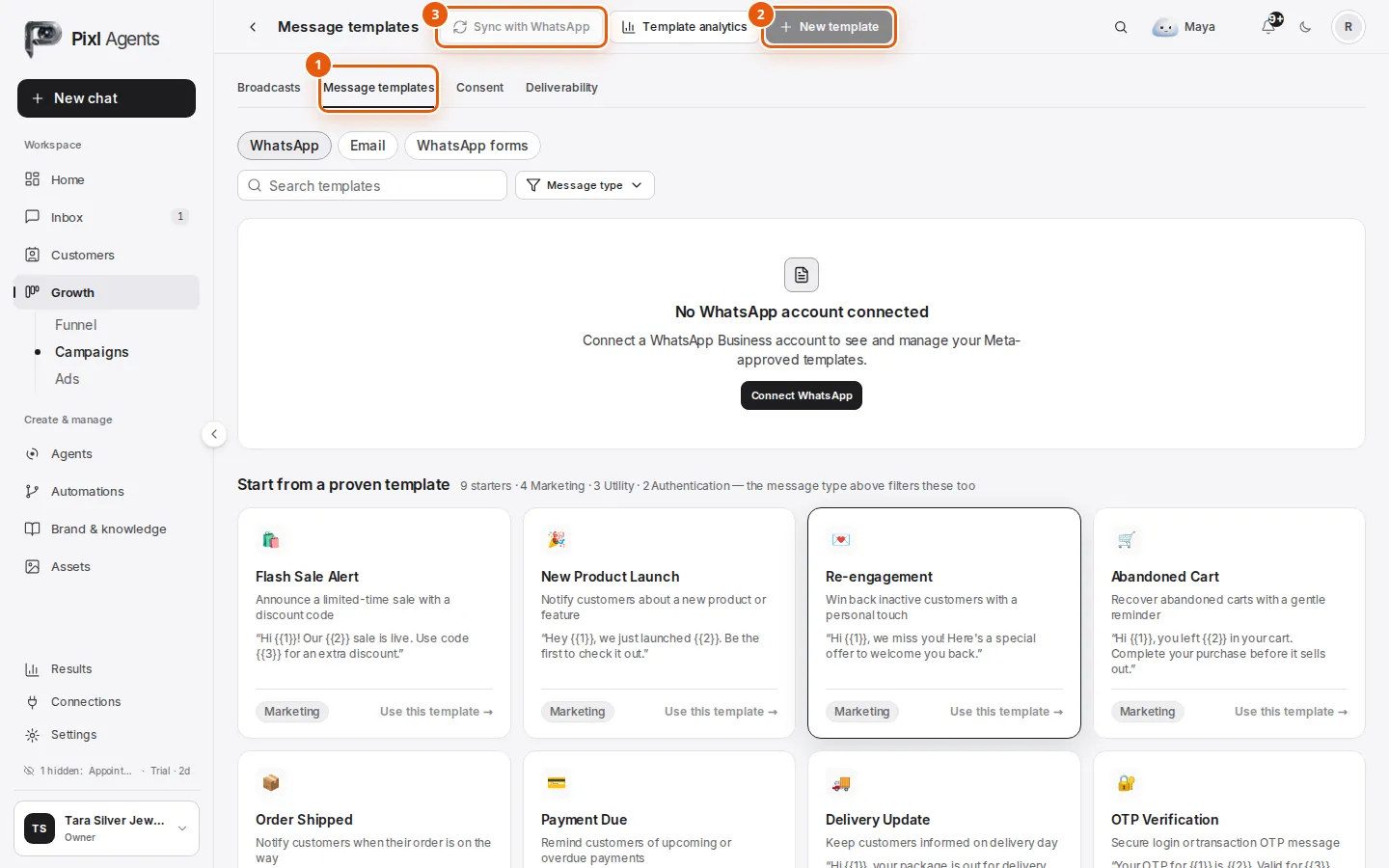
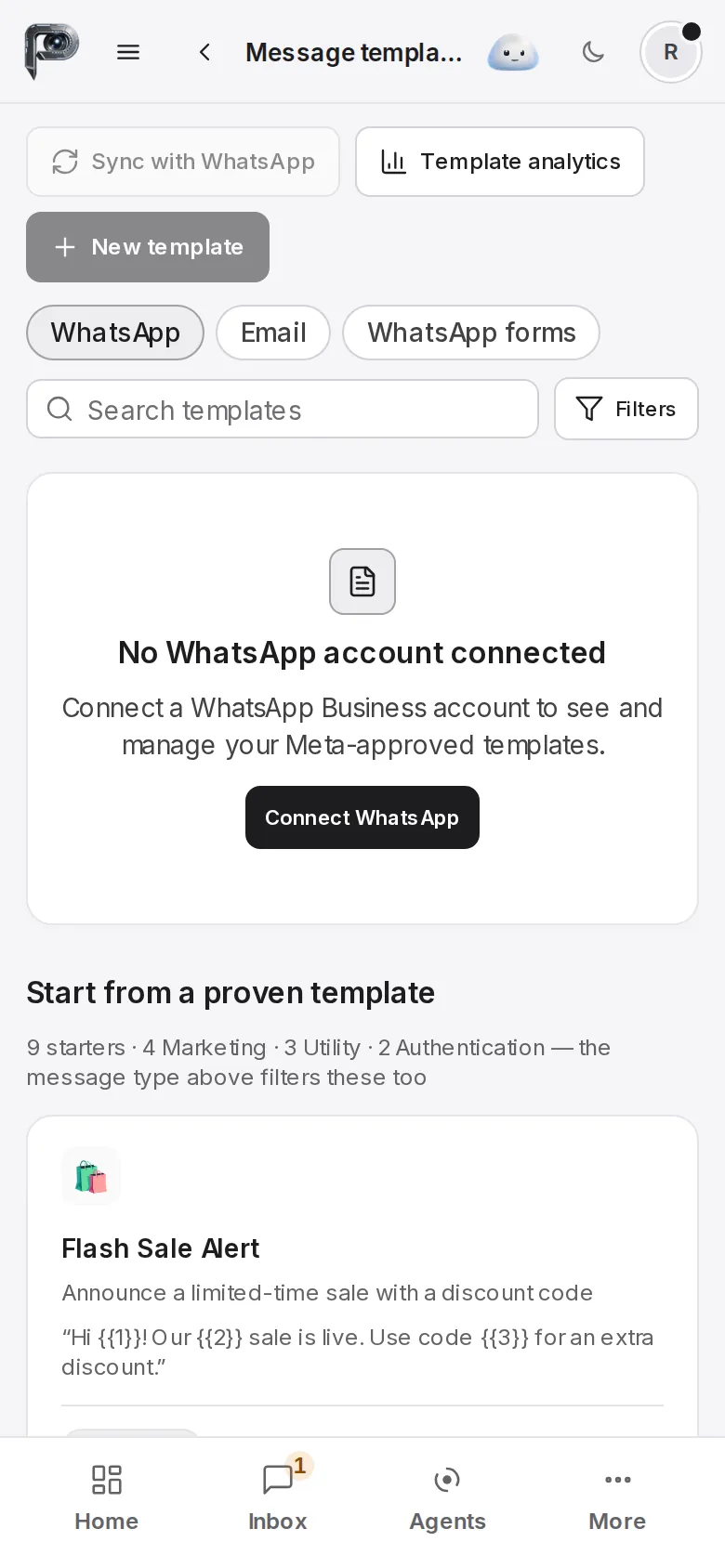
Go to Campaigns and open the Message templates tab 1. Sync with WhatsApp 2 brings in templates made in Meta's WhatsApp Manager and refreshes their status. New template 3 opens the builder. Both stay off until WhatsApp is connected.
Step 2: Or start from a ready one
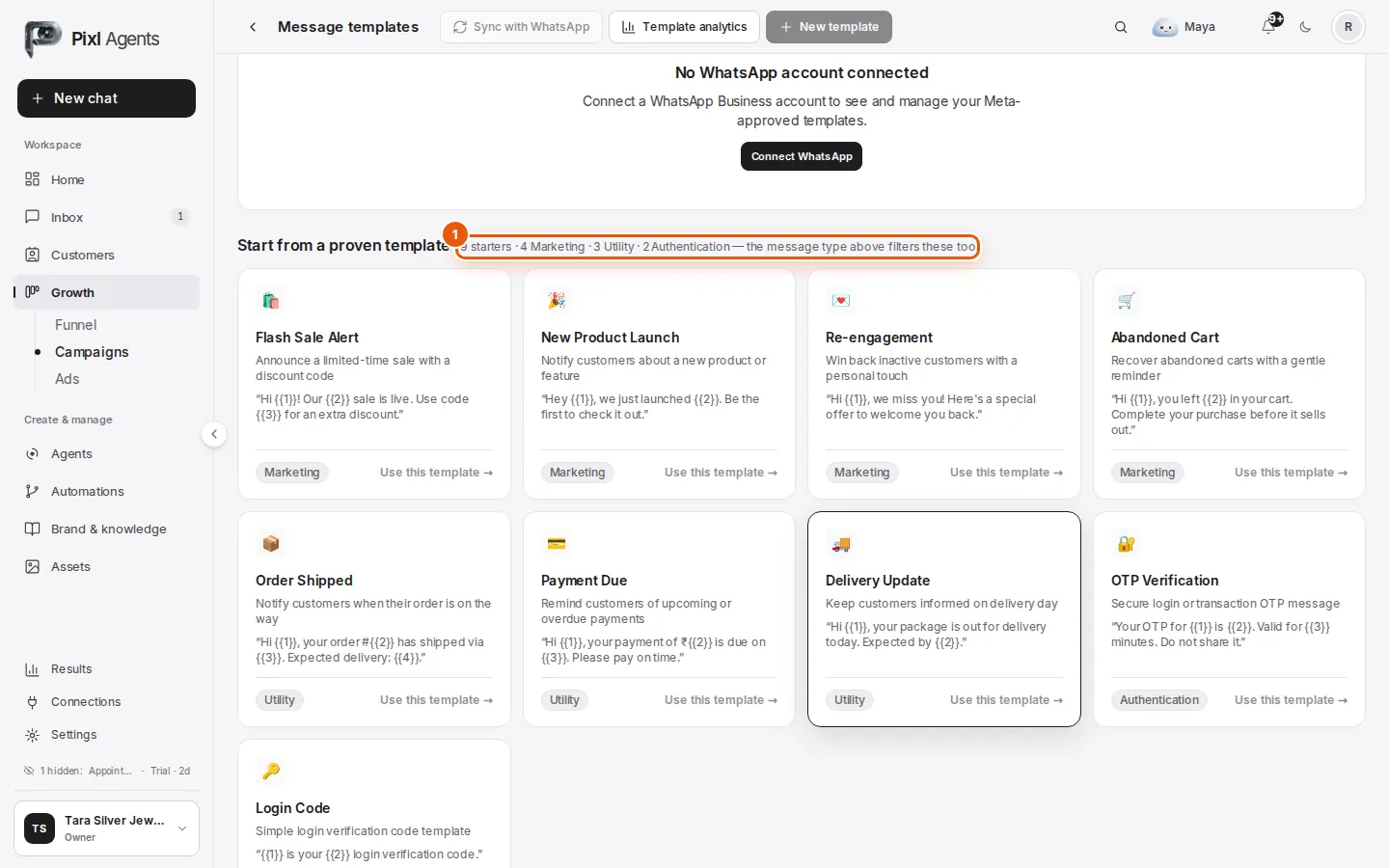
Below your templates, Start from a proven template has examples in each category 1. Use this template opens one in the builder, ready to edit.
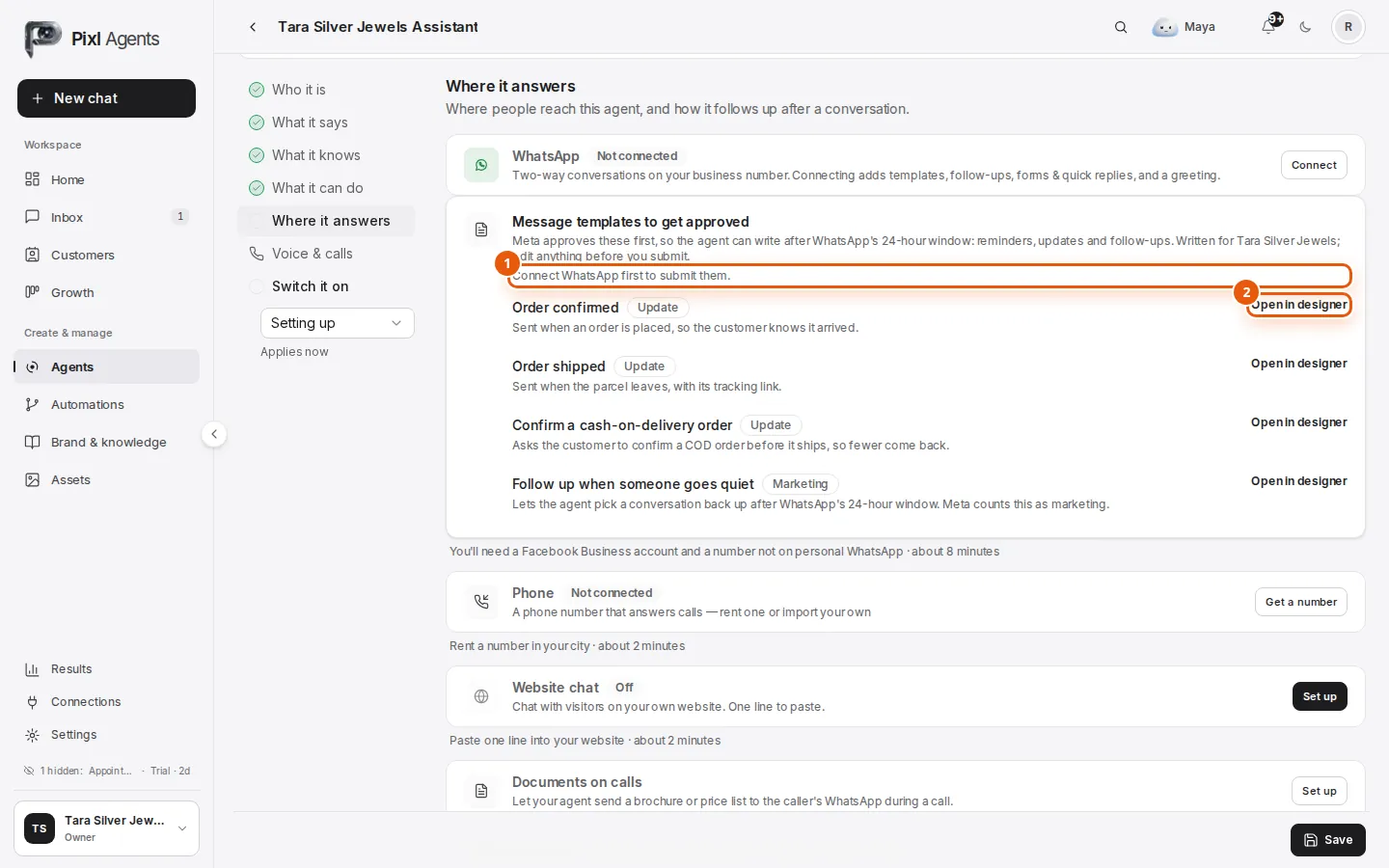
Each agent also suggests the templates its job needs, written for your business, under Where it answers 1. Open in designer 2 opens one in the builder.
Step 3: Choose the category and type
Pick Marketing or Utility. Then pick a type: Default gives you every option (a header, body, footer and buttons). The other types are for catalogues, forms, order details and order status.
The template builder's first step: Select a category, with Marketing, Utility and Authentication.
Step 4: Name it and choose the language
The name is for you and Meta, never shown to customers: lowercase letters, numbers and underscores, like
order_shipped. Pixl formats it as you type. Then choose the language the message is written in, and whether variables are numbers ({{1}}) or names ({{order_id}}).Step 5: Write the message
Fill in the body, and the header, footer and buttons if you want them. The preview on the right shows it as the customer will see it. Write it for me drafts the body from one line, and shows its small cost before it runs.
The builder's Edit template step: the body with its variables, the Sample values box, and the live preview.
Step 6: Submit for review
The last step sums it up. Click Submit for review. Meta usually answers within minutes, sometimes up to 24 hours, and the template moves to Waiting for review.
The builder's Submit for review step: the template's summary and the Submit for review button.
Variables, buttons and media
Variables
A variable is a blank filled in for each message: the customer's name, an order number, a date. Each one needs a sample value in the box marked Sample values, because Meta reviews the message with them filled in. Use realistic samples (“Asha”, “TS-2047”), not “test”.
- The body holds up to 1,024 characters, with as many variables as it needs.
- A text header holds up to 60 characters and one variable. The footer holds 60 characters and none.
- Bold, italic and strikethrough are in the body's toolbar.
Media
A header can be an image, a video, a document or a location instead of text. The file you upload is a sample for Meta's review: each campaign or message sends its own.
- Image: PNG, JPG or WEBP, up to 5 MB.
- Video: MP4, up to 16 MB.
- Document: PDF, up to 100 MB.
- Location: no sample needed. The place is given when it's sent.
Buttons
Up to 10 buttons, each with up to 25 characters of text. With more than three, WhatsApp shows them as a list.
- Custom: a quick reply the customer taps, like “Yes, I'm in!”.
- Visit website: a fixed link, or one that ends in a variable. Up to 2.
- Call phone number: dials your number. Up to 1.
- Call on WhatsApp: a WhatsApp voice call to you.
- Complete flow: opens a WhatsApp form. Up to 1.
- Copy offer code: copies a coupon code of up to 15 characters. Marketing only.
Submit and get approved
Your templates sit on a board, in four columns:
- Not submitted: drafts Meta hasn't seen.
- Waiting for review: Pending review, or In appeal.
- Approved: ready to send. Only these can be picked for a campaign or a follow-up.
- Blocked: Rejected, Paused for quality, or Disabled by Meta.
The template board: Not submitted, Waiting for review, Approved and Blocked, with a count on each.
When Meta rejects a template, Pixl sends you a notification with Meta's reason. Click Edit & resubmit on the template, fix it, and submit again. A template that is Paused for quality got too many blocks or reports: edit it to make it more useful to the people who get it.
Editing an approved template
Why Meta rejects a template
Common reasons, and the fix
- The body starts or ends with a variable
- Add words before the first variable and after the last one.
- Two variables side by side, or a line that is only a variable
- Put words between them, so each variable sits inside a sentence.
- Too many variables for a short message
- Add more fixed text around them, or use fewer variables.
- Missing or unrealistic sample values
- Give each variable a sample that looks real, such as a name and an order number.
- An offer in a Utility template
- Take the offer out, or submit it as Marketing. Utility is for updates the customer expects.
- The same wording as one you already have
- Change the wording, or edit the template you already have.
- A shortened or unclear link
- Use a full link on your own website.
- The text isn't in the language you chose
- Choose the language the message is written in.
- Something Meta doesn't allow businesses to message about
- Meta's business messaging policy decides this. Rewording won't get it approved; leave it out of WhatsApp.
Next: send your approved template to your audience, in batches.
Stuck on a step?
Tell us where it stopped and what it said, and we'll help you finish the setup.