
Setup guide
Campaigns in batches
Send an approved WhatsApp template to hundreds or thousands of people, or have an agent call a list. Pixl sends in batches at a safe pace, and shows you every result.
How batches work
On WhatsApp, Pixl sets the batches for you. Meta limits how many new people one number can message in 24 hours. Pixl sends to as many as fit now and queues the rest, which go out as the limit refills over the next days. Nobody is dropped, and the Review step tells you before you launch how many days it will take. If the number's quality rating falls to Warning, Pixl sends more slowly. At Restricted, it won't launch.
For calls, you set the pace: how many dials a minute and a day, how many calls at once, the hours, and the most to spend. See Batch calls.
Before a WhatsApp campaign you need:
- WhatsApp connected: Connect WhatsApp to your agent.
- At least one approved template: WhatsApp message templates.
- Your contacts in Pixl, with their phone numbers.
- For a marketing template, each person's opt-in on record.
Your audience
The file
A CSV or an Excel file (.xlsx), up to 50 MB, with one row per person and a header row. Only the phone number matters for WhatsApp; the rest helps you personalise and choose who gets what.
Columns
phonetextRequired- With the country code, like +919876543210. A number without one gets the country you choose when you import.
first_name, last_nametext- Fill in a template's name variable for each person.
tagstext- One or more, separated by commas, in quotes: "diwali,vip". Then choose Contacts with tags as the audience.
email, company, notestext- Kept on the contact.
stagetext- Where they are with you, such as new_lead or contacted. An audience can be one stage.
call_consent and the call_consent_… columnstext- Only for calls: whether, when and how they agreed to be called. See Batch calls.
do_not_callyes or no- Yes means never call this person, whatever else the row says.
Import it
Step 1: Upload the file
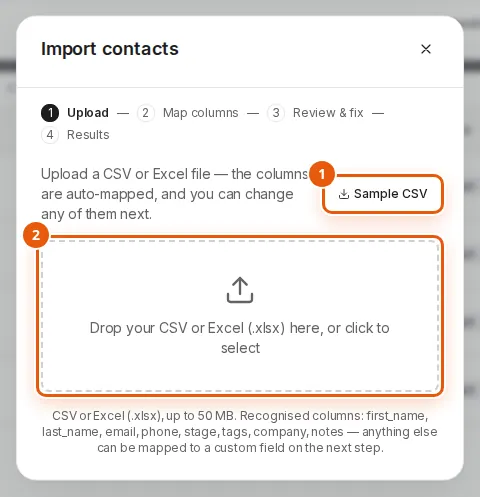
In Customers, click Import CSV. Sample CSV 1 downloads the same sample. Drop your file on the box 2, or click it to choose one.
Step 2: Check the columns
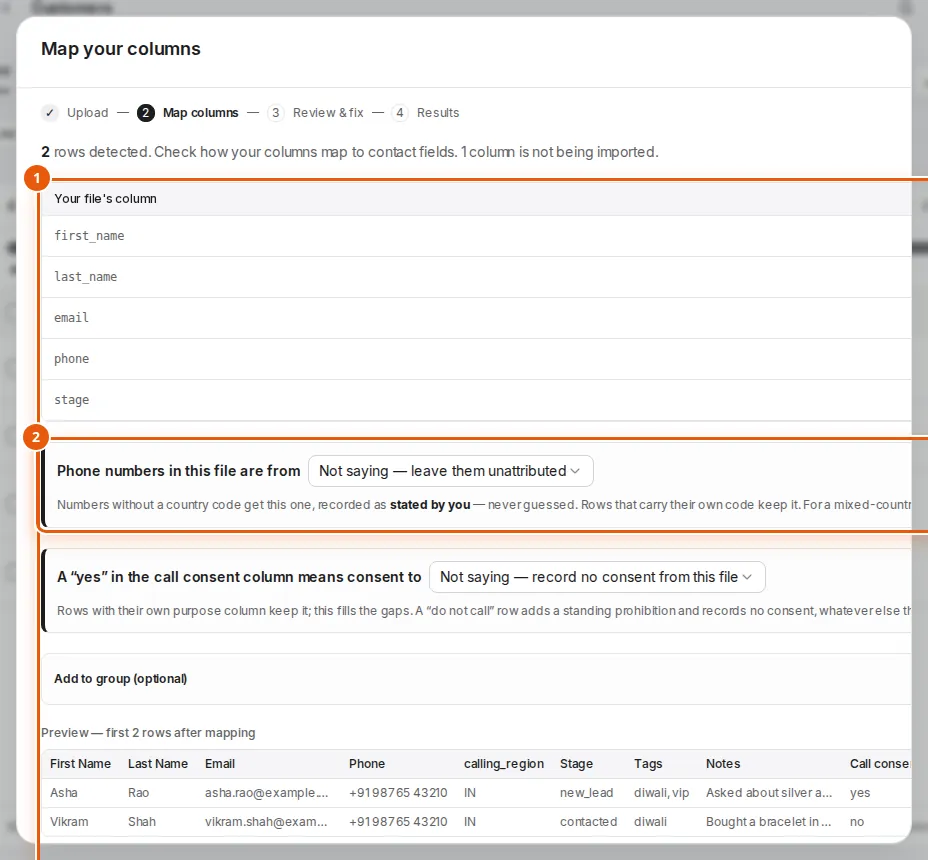
Pixl matches your columns to contact fields 1; change any it got wrong, or skip one. Choose the country of numbers written without a code 2. Under Add to group, put everyone in a new group, so you can pick that group as the campaign's audience. A preview shows the first rows.
Step 3: Review, then import
Review & fix lists only the rows that need a look: fix them there, or remove them. Nothing is saved until you click Import on that step; Results then shows what came in. You can also import from inside a campaign: Import a list, under its audience, adds the new group and picks it.
Consent and opt-in
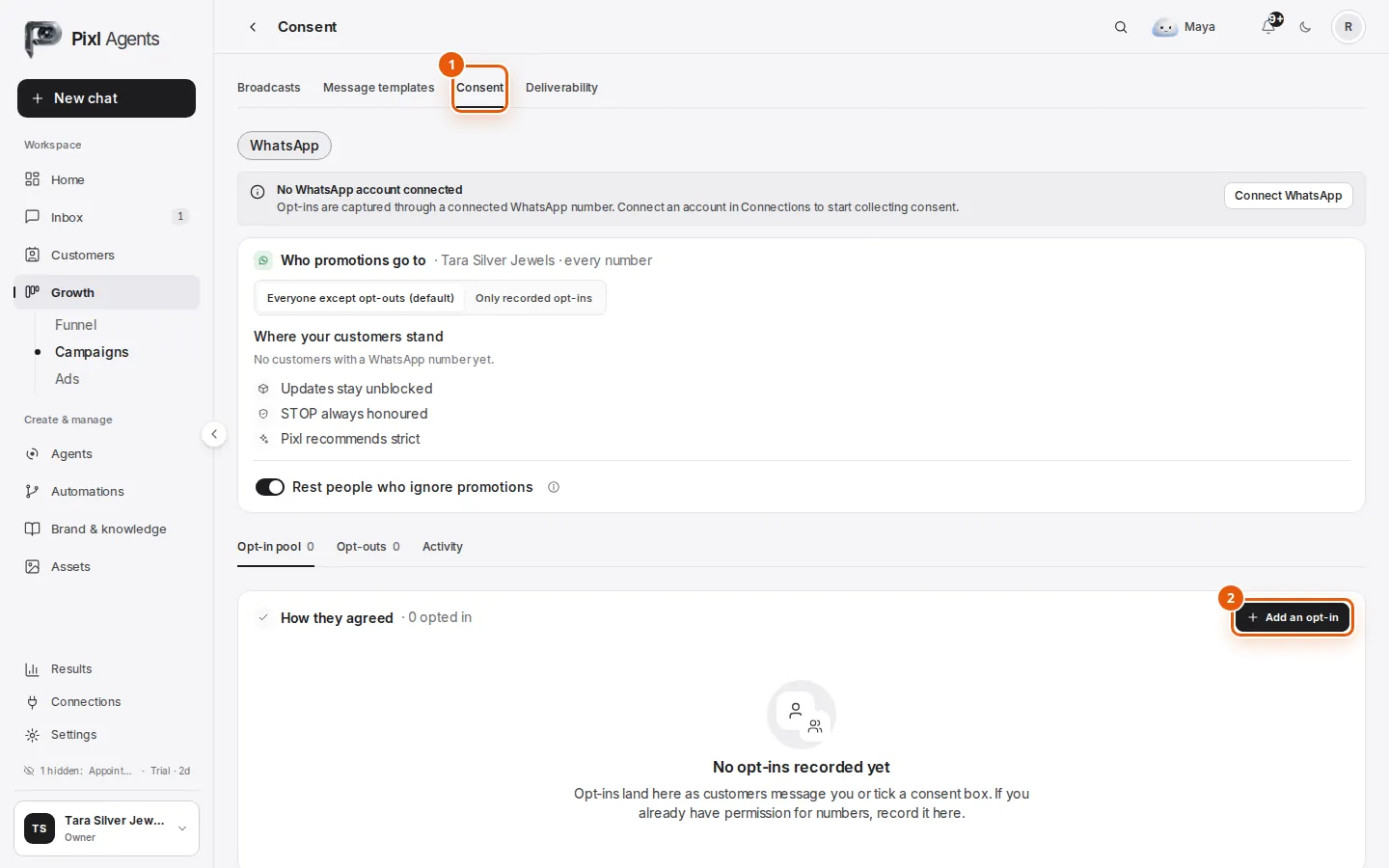
A file doesn't say who agreed to WhatsApp messages, so opt-ins are recorded separately, on Campaigns › Consent 1. Opt-ins that customers give in a chat or through your forms land there by themselves. To add ones you already have, click Add an opt-in 2.
In Record opt-in consent, paste the numbers with their country code (up to 200 at a time), choose how they agreed (on WhatsApp, a website form or checkout, in person, over the phone, or an existing customer agreement) and what they agreed to: order and appointment updates, or promotions and offers.
- A marketing template goes only to people with an opt-in on record. Pixl leaves out everyone else, and shows you how many.
- Anyone who opted out (for example by replying STOP) is always left out.
- A utility template needs no opt-in. Only people who opted out are left out.
- With Rest people who ignore promotions on, people who stopped reading your promotions get none for 30 days, which protects your number's quality rating. Order updates still reach them.
Send a WhatsApp campaign
Step 1: Start a new campaign
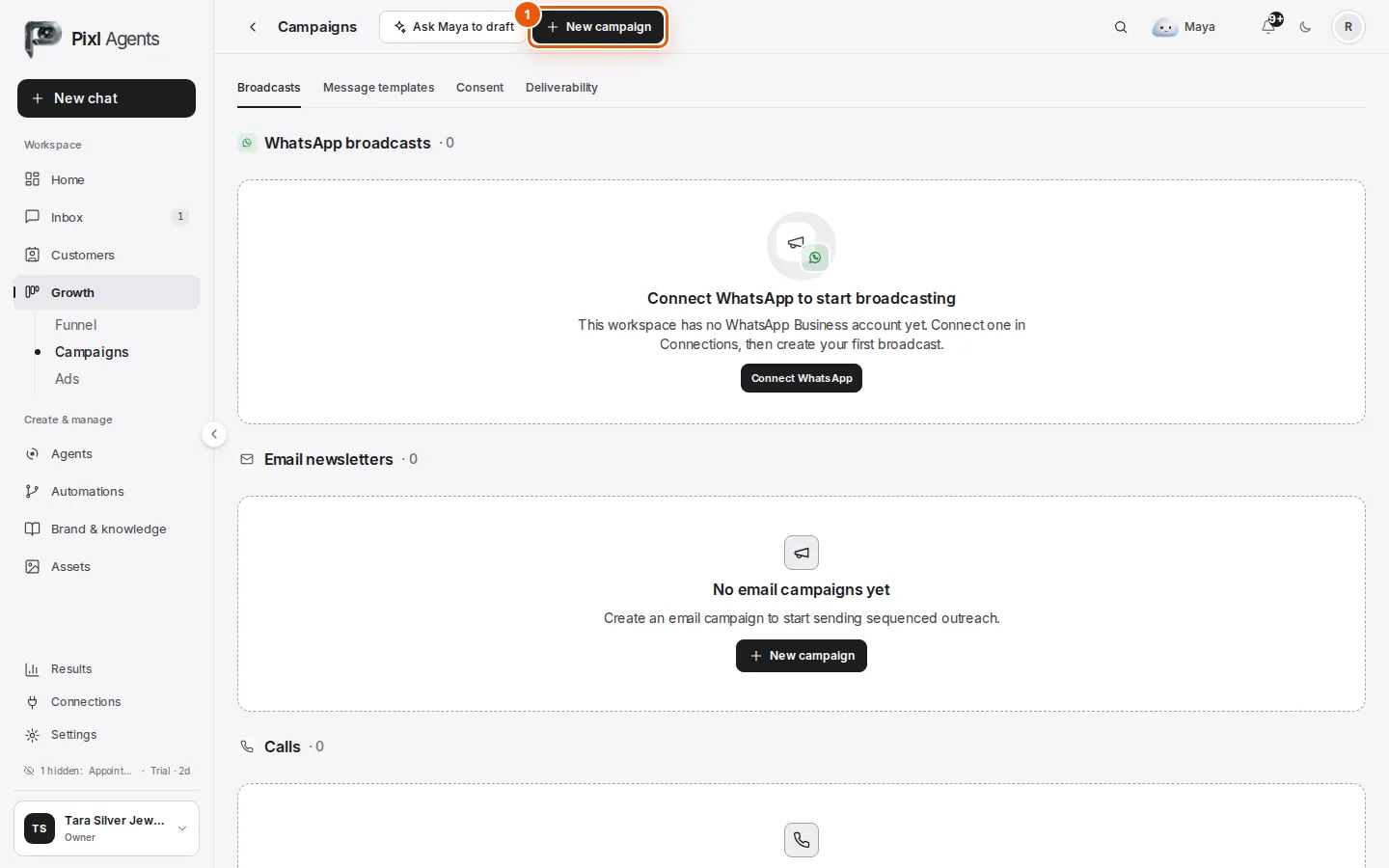
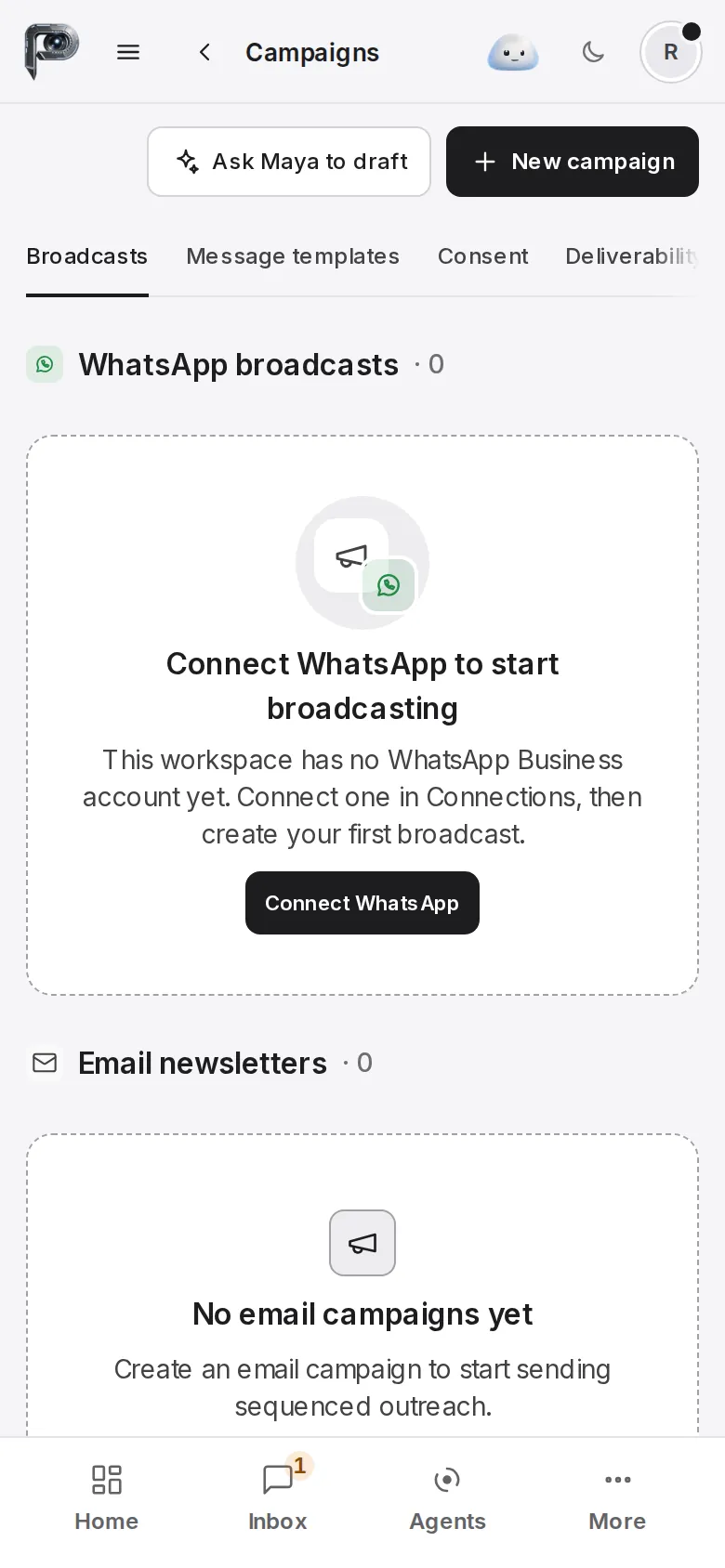
In Campaigns, click New campaign 1.
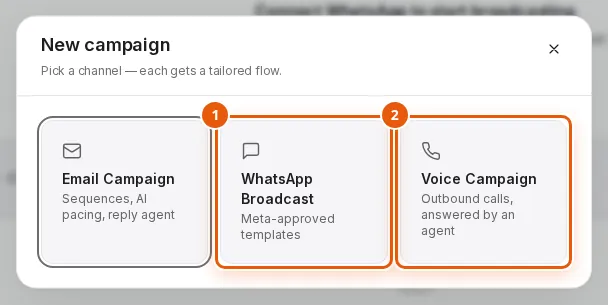
In the window that opens, choose the WhatsApp card 1. The voice card 2 is for calls.
Step 2: Compose: the template and its details
Name it, choose the WhatsApp account, and pick a template. Approved ones come first; the others are greyed out with the reason. Under Fill in the message details, set each variable to Same for everyone, or Personalize per contact (first name, last name, full name, email or phone) with a fallback for anyone missing it.
A new WhatsApp campaign, Compose: its name, the template gallery, the variables and the live preview.
Step 3: Configure: number, audience and timing
Choose the sending number. It shows its quality rating and how many new conversations Meta allows it today. Then choose who to reach: everyone with a phone number, a group, contacts with tags, or one lifecycle stage. Pixl counts how many people that reaches, and how many of them have opted in. Last, Send immediately after launch, or Schedule for later (in your browser's time zone).
A new WhatsApp campaign, Configure: the sending number, the audience with its count and opt-in coverage, and the schedule.
Step 4: Review, then launch or save a draft
The pre-flight checklist must be clear: the template is approved, the number's quality is good enough, and someone in the audience can get it. It shows how the send will be paced, who gets it and who is left out, and the cost: Meta's fee for each marketing message, billed to your WhatsApp account. A WhatsApp campaign uses none of your Pixl balance.
Tick the box to confirm the people opted in, then click Launch (or Schedule). Save as Draft keeps it without sending.
A new WhatsApp campaign, Review: the pre-flight checklist, who gets it, the cost line, Save as Draft and Launch.
Keeping the cost down
There is no separate spend cap for a WhatsApp campaign: Meta charges per message delivered, and Review shows how many marketing messages will go before you launch. If your workspace has a monthly spending limit in Billing and it has been reached, the launch is refused until you raise it.
Watch it, pause it, read the results
Launching opens the campaign's page. It updates by itself while the campaign sends: Sent, Delivered, Read rate and Replies at the top, the delivery funnel, and Batches, with each batch's status and its sent and failed counts. It works on a phone too, for checking on a send.
A campaign's page while it sends: Sent, Delivered, Read rate and Replies, the delivery funnel, and the batches.
- Pause holds everything not yet sent, and Resume carries on from there. A batch can be paused on its own too. To change a campaign that's sending, use Pause to edit.
- Stop cancels every send still waiting. It can't be undone.
- Recipients lists everyone, filtered by Delivered, Read, Replied, Failed or Pending. Click a failed one to see why.
- Analytics shows reads over time and which buttons people tapped. Create audience saves the recipients, grouped by how they responded, as a new group to message next.
When a campaign pauses itself or messages fail
- “Paused — add a payment method in Meta”
- Meta needs a payment method on your WhatsApp Business Account. Add it (see Check it's live), then Resume.
- “Paused — monthly spending limit reached”
- Raise the limit in Billing, then Resume.
- Blocked by Meta: frequency cap
- Meta limits how many marketing messages one person gets from all businesses. Those people are skipped; try them another day.
- Blocked by Meta: not on WhatsApp, or blocked you
- The number has no WhatsApp, or the person blocked your number. Nothing to fix in the campaign.
- Some recipients wait for later
- Meta's 24-hour limit for the number was reached. They go out as it refills, with no action from you.
Batch callsEarly access
An agent calls everyone in the audience, at the pace and in the hours you set, and the results come back to the campaign's page. You need a calling number for the workspace (in the agent's Where it answers, Phone › Get a number), an agent to speak, and enough balance for the calls.
Step 1: Who, which agent, and what for
New campaign, then the voice card. Name it, choose who to call 1 (or Import a list), the agent who speaks, and the caller ID 2: the number people see. Then say what the calls are for 3: an account update or order status, or service or support. Sales calls aren't available yet.
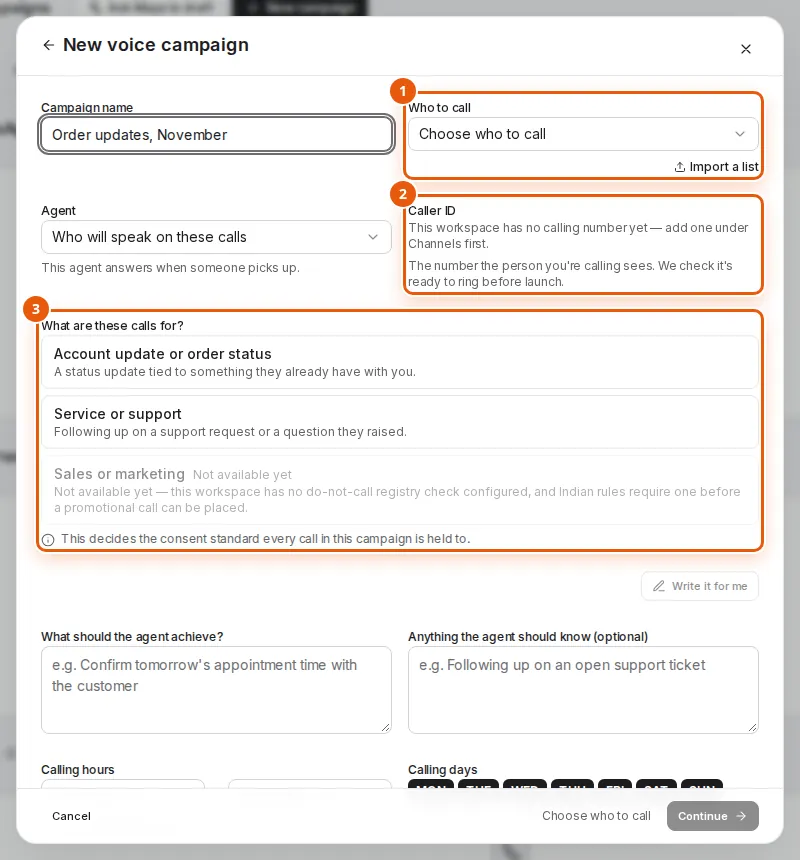
Under What should the agent achieve, write the goal as a full sentence. It is kept as the reason these calls are not promotional.
Step 2: Hours, pace and spend
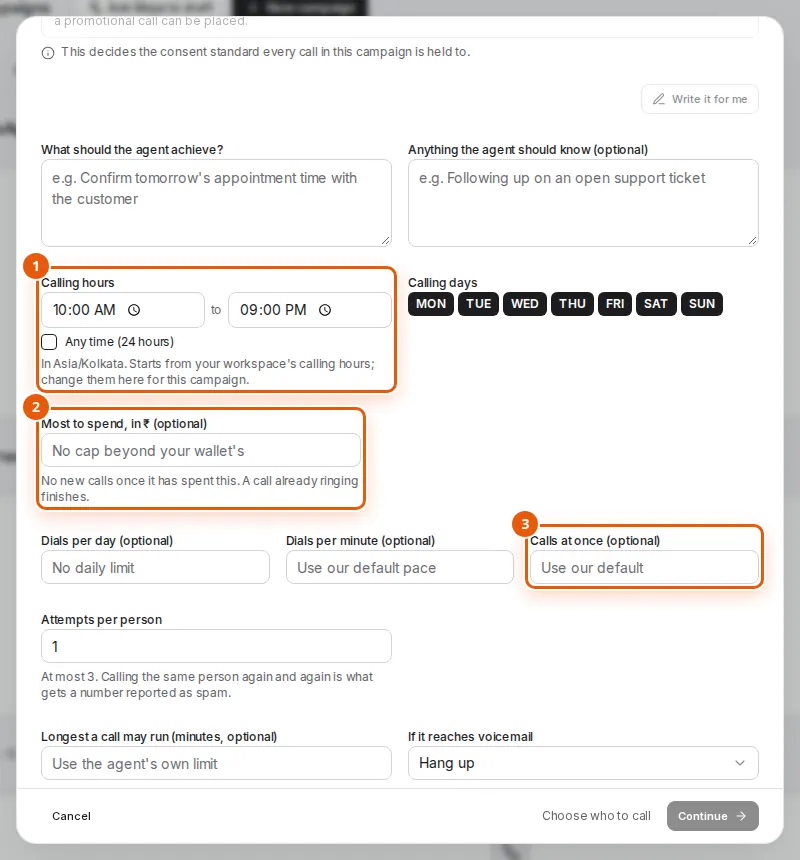
- Calling hours 1 start from your workspace's, 10 am to 9 pm India time unless you changed them. Change them for this campaign, or choose Any time (24 hours). Outside 10 am to 9 pm, Pixl warns you: late calls draw complaints, and complaints can get a number blocked. Calls wait outside the hours and start again when they open.
- Most to spend, in ₹ 2 is the campaign's spend cap. Once it's spent, no new calls start; a call already ringing finishes.
- Dials per day and dials per minute set the pace: 6 a minute unless you choose another, up to 60.
- Calls at once 3 caps how many run at the same time. Some lines are always kept free for customers calling you.
- Attempts per person: up to 3, with the hours to wait between them. Calling the same person again and again is what gets a number reported as spam.
Step 3: Review, then launch or save a draft
Continue saves the campaign as a draft and opens Review; nothing is called yet. Review checks there's a free line, whether the calling hours are open now, the caller ID and your balance, and shows how many of the people can be called, with the reasons for the rest. It shows an estimate and the most the campaign can cost. Then Launch, or Save as Draft.
Who can be called
Stuck on a step?
Tell us where it stopped and what it said, and we'll help you finish the setup.