
Setup guide
Connect WhatsApp to your agent
Your agent answers on your own WhatsApp Business number, through Meta's official platform. It takes about 8 minutes, most of them in Meta's own sign-up window.
Before you start
Have these ready. Meta asks for them in its window, and the connection stops if one is missing.
- A Facebook login that manages your business. You sign in to Meta with your own Facebook account, and choose your business portfolio (the business account in Meta Business Suite). If you don't have one yet, Meta lets you create it in the same window.
- A number that isn't on WhatsApp yet. It must be able to get a text message or a voice call, for the code. If it is in use on the WhatsApp or WhatsApp Business app, delete that WhatsApp account in the app first (Settings › Account › Delete my account). The chats on that phone go with it, so back them up first. A landline works: choose the voice call.
- A display name that follows Meta's rules. It is the name customers see, and Meta reviews it. Use your business name as it appears on your website, shop sign or packaging. Meta declines a generic word on its own (“Jewellery”), a web address, emoji or symbols, and words in capitals unless they are an acronym.
- A paid plan or the free trial. WhatsApp is included from the Starter plan. On the Free plan, Connect opens an upgrade window instead.
- A payment method in Meta, soon after. Meta bills WhatsApp message fees to your own WhatsApp Business Account, and Pixl adds nothing on top. It doesn't block the connection, but Meta holds back template messages and campaigns until a payment method is there.
Start in Pixl
Step 1: Open the agent's Where it answers
Go to Agents, open the agent that should answer on WhatsApp, and choose Configure. In its list of sections, open Where it answers 1. The WhatsApp row says Not connected.
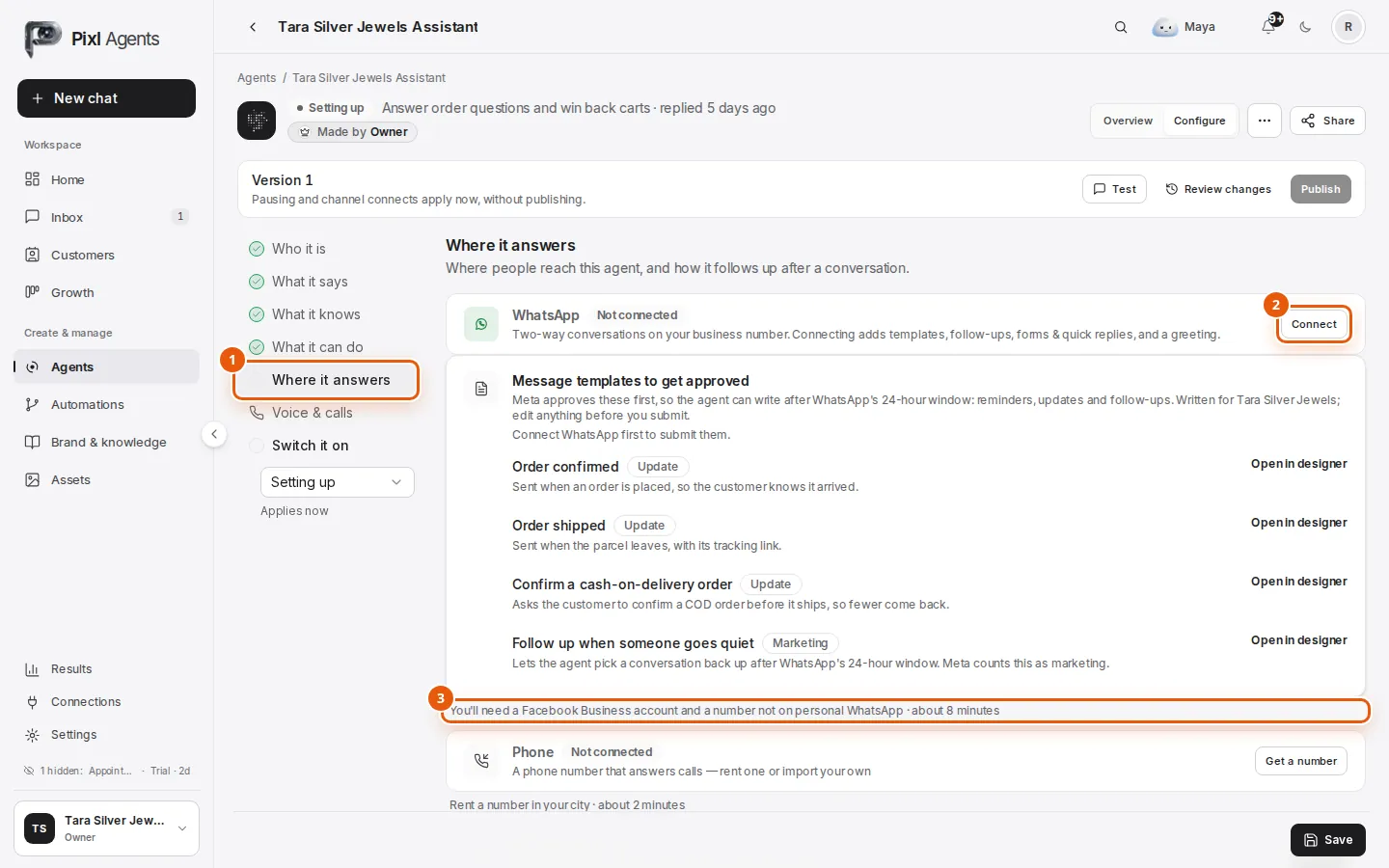
1 Where it answers 2 Connect 3 What Meta will ask for, and how long it takes. Step 2: Click Connect
Click Connect 2 on the WhatsApp row. Meta's sign-up window opens over the page. If nothing opens, your browser blocked the pop-up: allow pop-ups for this site and click Connect again.
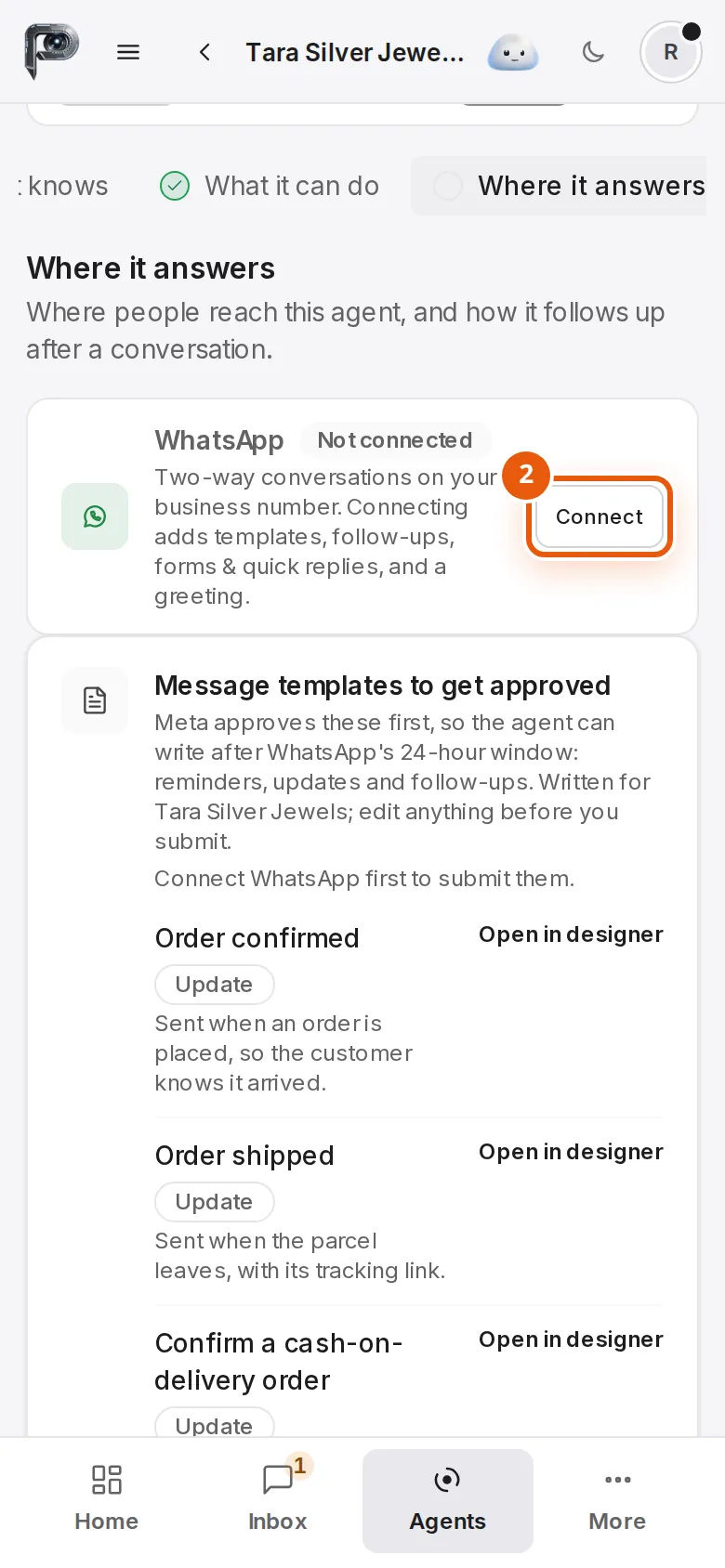
It's easiest on a computer. On a phone the row is in the same place, but Meta's window has more steps to scroll.
Step 3: Or start from Connections
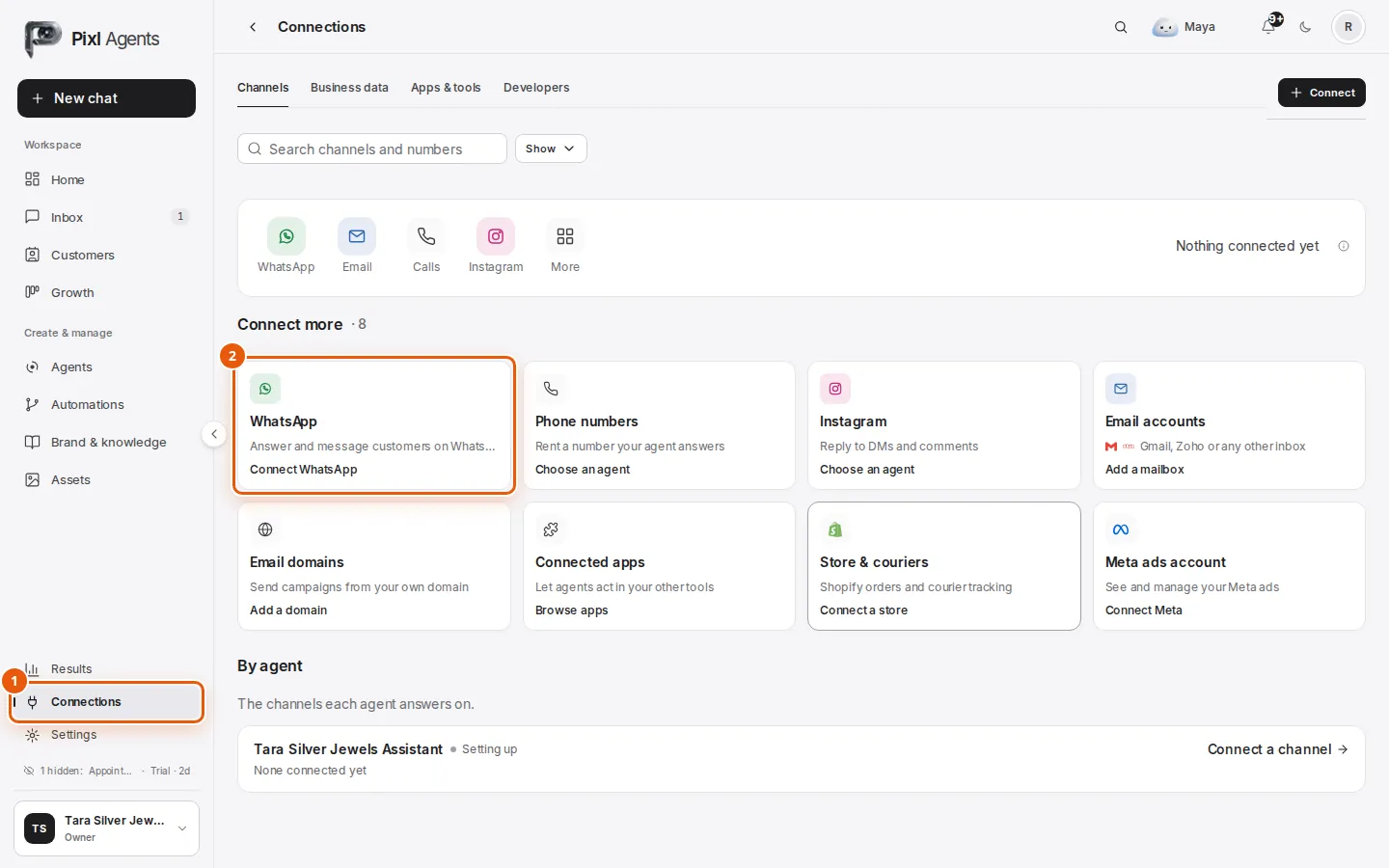
Connections 1 has the same sign-up, behind Connect WhatsApp 2.
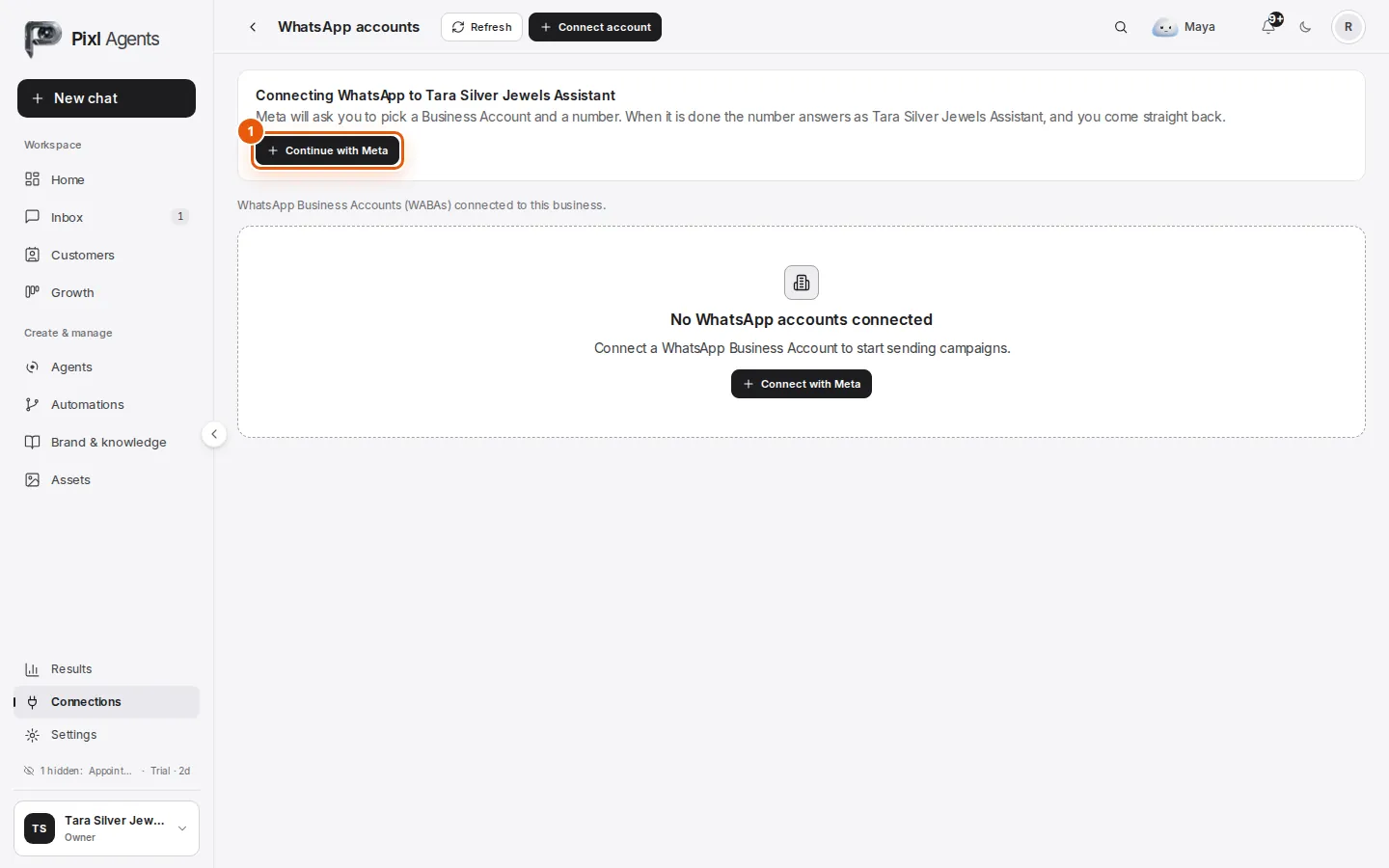
When you get there from an agent, or from Home's Connect WhatsApp, the page says which agent the number will answer as. Click Continue with Meta.
Connected without an agent?
Connect account on Connections › WhatsApp saves the WhatsApp Business Account to your business without choosing an agent. No agent answers it yet: to choose one, open that agent's Where it answers and connect WhatsApp there. One number answers as one agent at a time.
Meta's sign-up window
This part is Meta's, on facebook.com, so its wording can change. Pixl never sees your Facebook password. These are the steps it asks for today.
Meta's sign-up window, on facebook.com: choose your business portfolio, then your WhatsApp number.
Step 1: Log in to Facebook
Log in with the Facebook account that manages your business, and continue.
Step 2: Choose your business portfolio
Pick your business portfolio, or create one with your business name, website and country. Use the legal or trading name your customers know.
Step 3: Choose or create a WhatsApp Business Account
If the business already has one, pick it. Otherwise create a new one. Then fill in the WhatsApp Business profile: the display name, a business category, and optionally a short description and your website.
Step 4: Add and verify your number
Enter the number with its country code, choose a text message or a voice call, and type the 6-digit code Meta sends. Meta then reviews the display name, which can take a day or two. The number can be used while it does.
Step 5: Confirm what Pixl may do
Meta lists what Pixl will be able to do: manage your WhatsApp Business Account, and send and receive its messages. Confirm, and the window closes on its own.
Back in Pixl, one of three things happens:
- It connects. The WhatsApp row shows your number instead of Not connected.
- You pick a number. If the account has more than one, Pixl asks which number answers as this agent. Click it.
- Add a number, or Verify number. The account is connected, but the number isn't ready. Click Open WhatsApp Manager, add or verify the number there, then come back and click Choose a number.
Check it's live
Step 1: See the number on the agent
The agent's WhatsApp row now shows your number. From here you can switch on an Instant greeting, set follow-ups, and disconnect under Fine-tune.
The agent's WhatsApp row once connected: your number, Instant greeting and Follow-ups.
Step 2: Check the number in Connections
Open Connections › WhatsApp and the account. Each number shows whether it is Registered, its quality rating, its messaging limit and whether Meta has approved the display name. Pending review is normal at first.
Connections › WhatsApp with the account open: the number's registration, quality rating, messaging limit and display name status.
Step 3: Send a test message
From a different phone, send “Hi” on WhatsApp to your business number. The agent replies within a few seconds, and the conversation appears in your Inbox. That is your proof it's live: customers who write to the number now get answers.
Step 4: Add a payment method in Meta
If the account shows Add payment method, someone with a Finance role in your Meta business adds one in WhatsApp Manager. Then click Check again in Pixl. Until then, Meta doesn't deliver template messages, campaigns or follow-ups.
Next: get your first message templates approved, so the agent can follow up after 24 hours and you can send campaigns.
If something goes wrong
What you see, and what to do
- Nothing opens when you click Connect
- The browser blocked Meta's pop-up. Allow pop-ups for this site, and click Connect again. If Pixl says the Facebook sign-in didn't load, refresh the page first.
- “You closed Meta's WhatsApp setup, so nothing was connected”
- Meta's window was closed before its last step. Click Connect and go through to the end.
- “This channel is on a paid plan”
- WhatsApp is included from the Starter plan. Upgrade, or start the free trial.
- Meta says the number is already registered on WhatsApp
- The number is in use on the WhatsApp or WhatsApp Business app. Delete that account in the app, wait a few minutes, and try again. Or use another number.
- The 6-digit code doesn't arrive
- Check the number and its country code, then choose a voice call instead of a text message. A landline needs the call. Meta limits how often it sends a code, so wait a few minutes before asking again.
- “No WhatsApp Business Account found for your Meta account”
- Meta's window closed before a WhatsApp Business Account was made. Click Connect again and finish every step.
- “…connected, but it has no phone number yet” or “…isn't verified yet”
- Add or verify the number in WhatsApp Manager, then click Choose a number on the agent's WhatsApp row.
- “This WhatsApp number is still connected to another workspace”
- A number works in one Pixl workspace at a time. Disconnect it in the other workspace first, then connect it here.
- “Meta's WhatsApp setup ran into a problem… Meta said: …”
- Meta's own message says what stopped it. Fix that and try again. If it happens again, send us the reference at the end of the message.
- The display name shows Declined
- Change it in WhatsApp Manager to the name your business trades under, and Meta reviews it again. Until then, customers see your number.
- Add payment method, or Blocked by Meta: payment
- Add a payment method in WhatsApp Manager (it needs a Finance role in your Meta business), then click Check again.
- “Webhook subscription missing”
- Meta stopped sending delivery updates for the account. Click Re-subscribe on the account in Connections › WhatsApp.
- Messages to new people stop for the day
- Meta limits how many new people a number can message in 24 hours. The limit rises as you send messages people want, and after Meta verifies your business.
Stuck on a step?
Tell us where it stopped and what it said, and we'll help you finish the setup.